Using CListCtrl::SortItems
In my previous article, I explained how to use LPSTR_TEXTCALLBACK and LVN_GETDISPINFO.
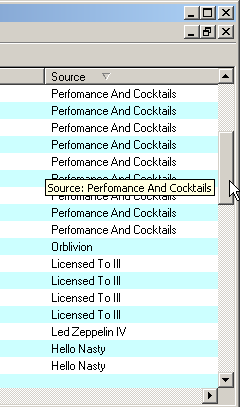
If you specify LPSTR_TEXTCALLBACK when inserting an item into a ListView control, it no longer supports sorting; you can’t click on the column heading to sort the list control.
In an earlier article, I showed how to draw a drop shadow with the help of the ImageList control.
The documentation for ImageList_DrawIndirect seems to imply that it can draw an item from an ImageList control with a drop shadow. Unfortunately, it doesn’t seem to be supported.
In the Grabbing a snapshot of the screen article, I said: “I’m planning on altering the snapshot before displaying it.”. This article shows how to alter a bitmap by directly accessing the raw bits.
Some (simple) code that shows how to grab a snapshot of the screen and display it in a window.
Some twisted code showing how to combine MFC’s CTreeCtrl, CCmdTarget and TrackPopupMenu.
If you’re allowing the user to “rubber-band” a selection in your application, you might choose to use the DrawDragRect function. Here’s how.
In earlier articles, Displaying Progress in a Wizard and Cancelling Long-Lived Tasks from a Wizard, I discussed how to run a long-lived task from a wizard and how to display progress in the wizard.
This article, a follow-up to this one, shows how to modify our project to allow the user to cancel the long-lived operation.
I just had a strange error message from Visual Studio.NET when attempting to add a handler for WM_DESTROY to a C++
dialog class. It said:
If you ask the MFC AppWizard to generate a dialog-based application, it generates code that looks like this:
Nothing particularly strenuous: Just handle NM_CUSTOMDRAW and play with clrTextBk. The only real surprise is that you have to return CDRF_NEWFONT from your handler to get the new colour used.
I just spent the best part of a morning chasing this one down, so I thought I’d share it with you:
CPropertySheet provides the SetWizardButtons function, allowing you to enable or disable the “Back” or “Next” buttons. It doesn’t, however, allow you to disable the “Cancel” button.
I’m adding a wizard to the program that I’m currently working on. The wizard walks the user through importing some information from a file. I’d like to be able to display the import progress as a seamless part of the wizard.
I was adding a new wizard to the program that I’m currently working on, so I copied some code from a Wizard97 demo program that I wrote some time ago.
When it comes up, the header and watermark graphics are displayed repeated.
The program that I’m working on at the moment needs a wizard to walk the user through something, and I ran into a problem with IntelliSense.
There are at least two reasons for using FindWindow.
Unfortunately, FindWindow is only really guaranteed to return your application’s main window if you use a unique class
name. If you’re using MFC, you’ll find this a little difficult: MFC automatically generates class names of the form
“Afx:400000:8:10011:0:7e0c0b”.
The ON_COMMAND_RANGE and ON_UPDATE_COMMAND_UI_RANGE macros are useful when you want to treat a group of commands
similarly. In this case, it’s the commands for changing list view style. The command IDs must be contiguous, and you
must specify the lower one first.
If you ask the MFC AppWizard to generate a dialog-based application, it generates code that looks like this:
There’s some discussion of this in Microsoft Knowledge Base Article Q141751.
The reason that our previous example consumes 100% CPU is that it busy-waits while pumping messages. The correct answer
is to run the dialog box modally. However, we can’t (easily) use DoModal, because this causes ordering problems. Do we
create the thread or the dialog first?
One simple way to run the task in the background, while reporting progress, which still allows the dialog to be repainted/moved correctly is to busy-wait for the background thread to finish, while pumping messages:
We can solve the problem of the memory leak, and of the premature destructor call, by simply blocking until the thread is finished:
We add another button to the dialog:
void CBgthreadDlg::OnBackground()
{
    // Run on a background thread. Don't wait for the thread to exit.
    TaskThread t;
    t.Start();
}
This uses the code from here to implement the thread class:
Because we have progress reporting, we can make use of a progress dialog to partially solve all of these problems. In Visual C++, select “Project|Add To Project|Components and Controls”.
We can deal with the first one (no feedback), by using an hourglass:
Initially, we’ll run this as a foreground task. This will ensure that the code compiles and works before we get too complicated. Also, it’ll show why we want this task to run as a background thread.
It’s not easy to write a Windows program that takes a long time to do something and yet still seems responsive to the user. Consider that you’ve got a single task that needs to be finished:
Consider the following situation:
You’ve got an MFC application, which uses a lot of static libraries to do a lot of the work. These libraries need to interact with the user (perhaps they’ve got dialog boxes in them). Unfortunately, Visual C++ and MFC effectively force you to store all of your resources in the main application .rc file. This makes it difficult to use the static library (with the same resources) in multiple projects. Moreover, it makes the library dependent on the main application, for the resource IDs.
Microsoft’s knowledge base article, Q179907 explains how to use a transparent CAnimateCtrl in a CView or a CDialog.